 Draxon VR Training Syllabus
Trainer Hub
The Trainer Hub is your central platform for managing trainees, tracking progress, and monitoring VR training sessions. Watch the video below for a quick overview, then explore each section in detail.
The Draxon platform has three user roles: Admin (manages stations and trainers), Trainer (manages trainees and sessions), and Trainee (no portal access — logs into VR with username and PIN). As a trainer, you have access to all features described in this guide.
Trainer Hub Overview
Login & Security
Log in at the Draxon LMS with your email and password. If you have forgotten your password, use the "Forgot your password?" link on the login screen to receive a reset link by email.
To update your web password or personal VR PIN, go to Settings in the sidebar and select the tab Security.
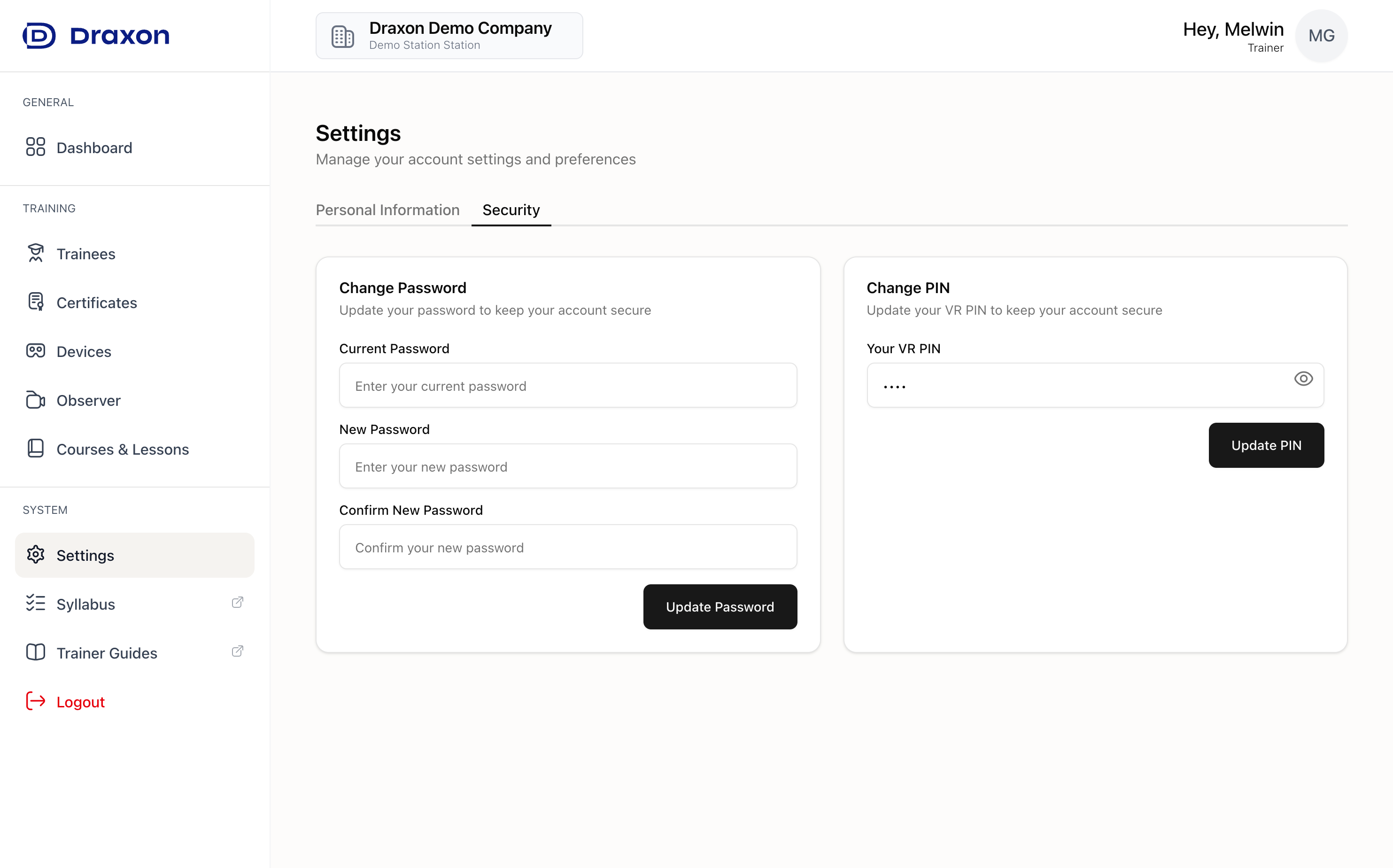
Security Settings - Change your password and enable two-factor authentication
Dashboard
The Dashboard is the home of your Trainer Hub and gives you a quick overview of your station at a glance.
Stat Cards
At the top of the Dashboard, you will find four interactive stat cards:
- Certificates — Total certificates earned across your station
- Devices — Number of registered headsets
- Trainees — Total trainee accounts
- Lessons Trained — Total number of lessons trained
Each card is clickable and navigates directly to the corresponding page (e.g. clicking "Trainees" takes you to the Trainees page).
Recent Activity
The Recent Activity feed shows the latest trainee actions. Each entry includes the trainee name, module, lesson name, status (Completed or In Progress), and date.
Most Active Trainees
This section ranks trainees by their lesson progress, showing how many lessons each trainee has completed and how many are still in progress.
Popular Lessons
The most frequently trained lessons are listed here with a training count. Clicking on a lesson navigates directly to that lesson's detail view, where you can see individual trainee attempts.
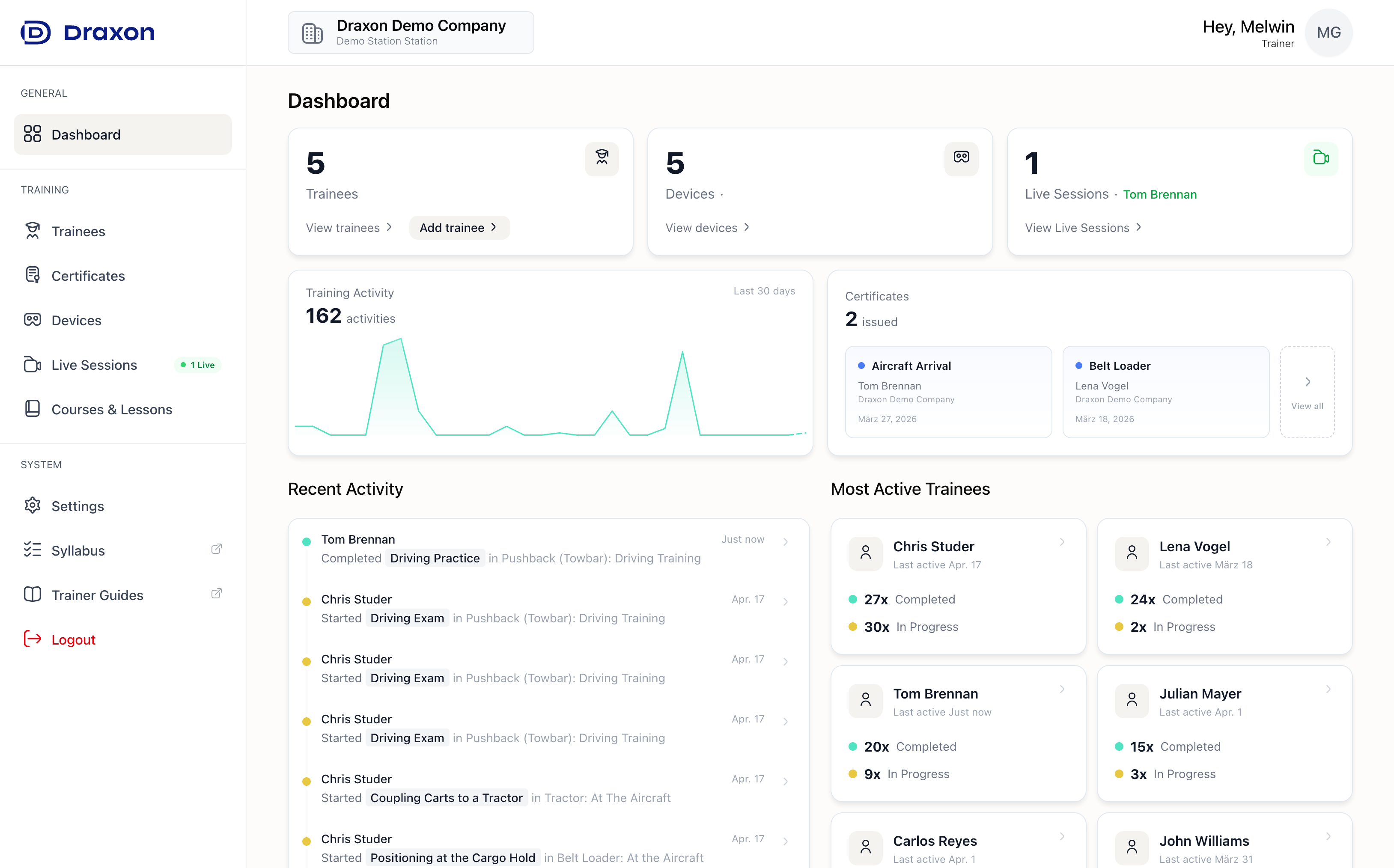
The Trainer Hub Dashboard
Trainees
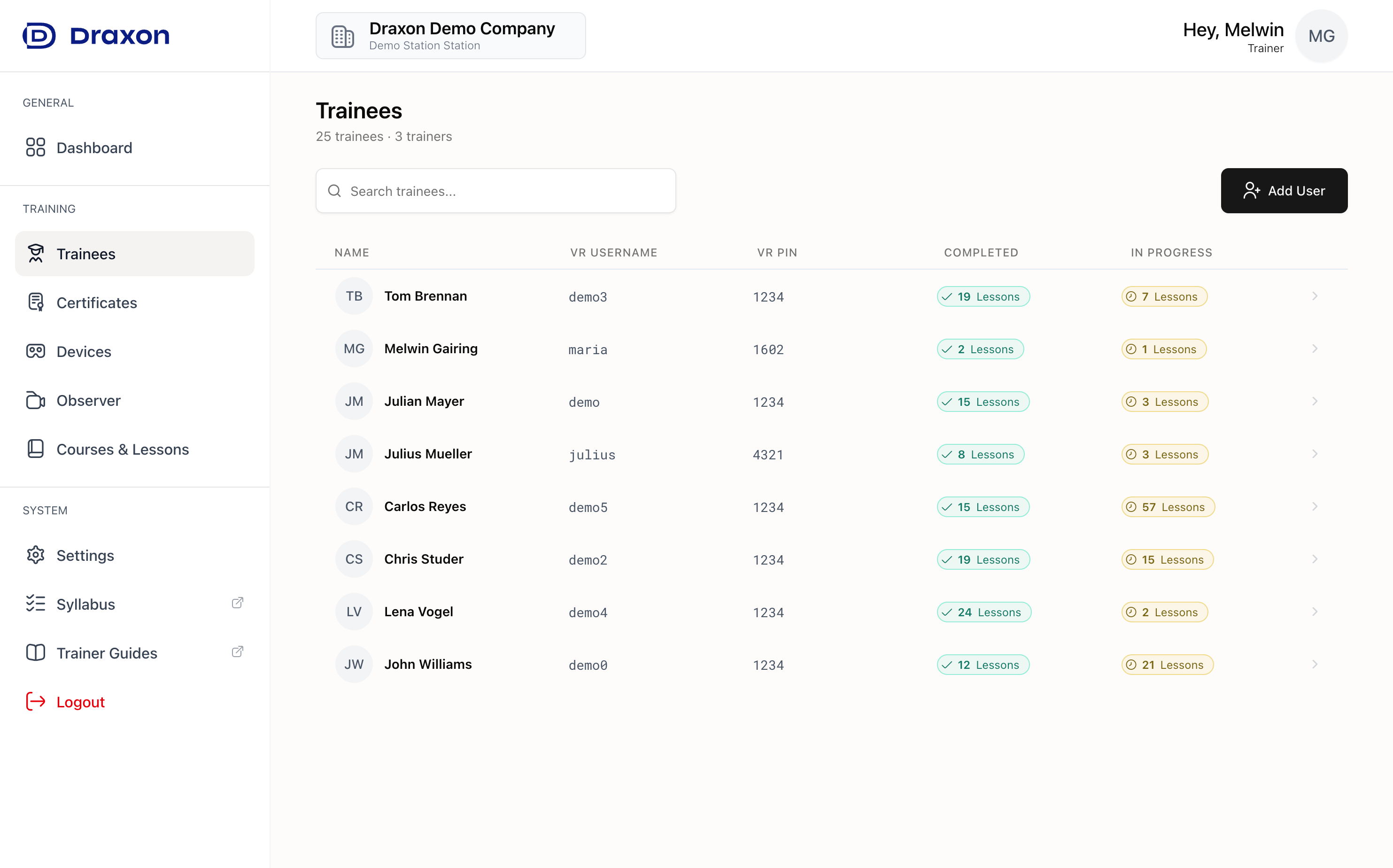
This is where you manage your users. Every trainee needs an account here so they can log into the headset with their own credentials and their progress is tracked under their name.
The trainees page shows a role breakdown at the top (e.g. how many trainers vs trainees are registered at your station).
Trainee List
Each row in the trainee list shows the trainee name, username (in monospace), and lesson progress badges showing how many lessons are Completed and In Progress. The VR PIN is displayed in plain monospace text for quick reference.
Use the Load More button at the bottom to load additional trainees if your station has a large number of users.
Adding a New User
- Click "Add User" in the top-right corner.
- Select the role: Trainee or Trainer.
- Fill in the first name, last name, username, and VR PIN. Each trainee requires a unique username (alphanumeric) and a 4-digit PIN.
Tip: We recommend using the trainee's first name as the username and 1234 as the VR PIN, as this is easiest to remember.
Note: Username + PIN combinations must be unique for each user of the station.
- Click "Add User". You are ready to go.
Managing Trainees
- View PIN — PINs are shown in plain monospace text in the trainee list.
- Edit / Delete — Select a trainee and open the Settings tab to edit their details or delete their account. Deleting an account removes login credentials but retains all training history.
Progress Tracking
Per-User Progress
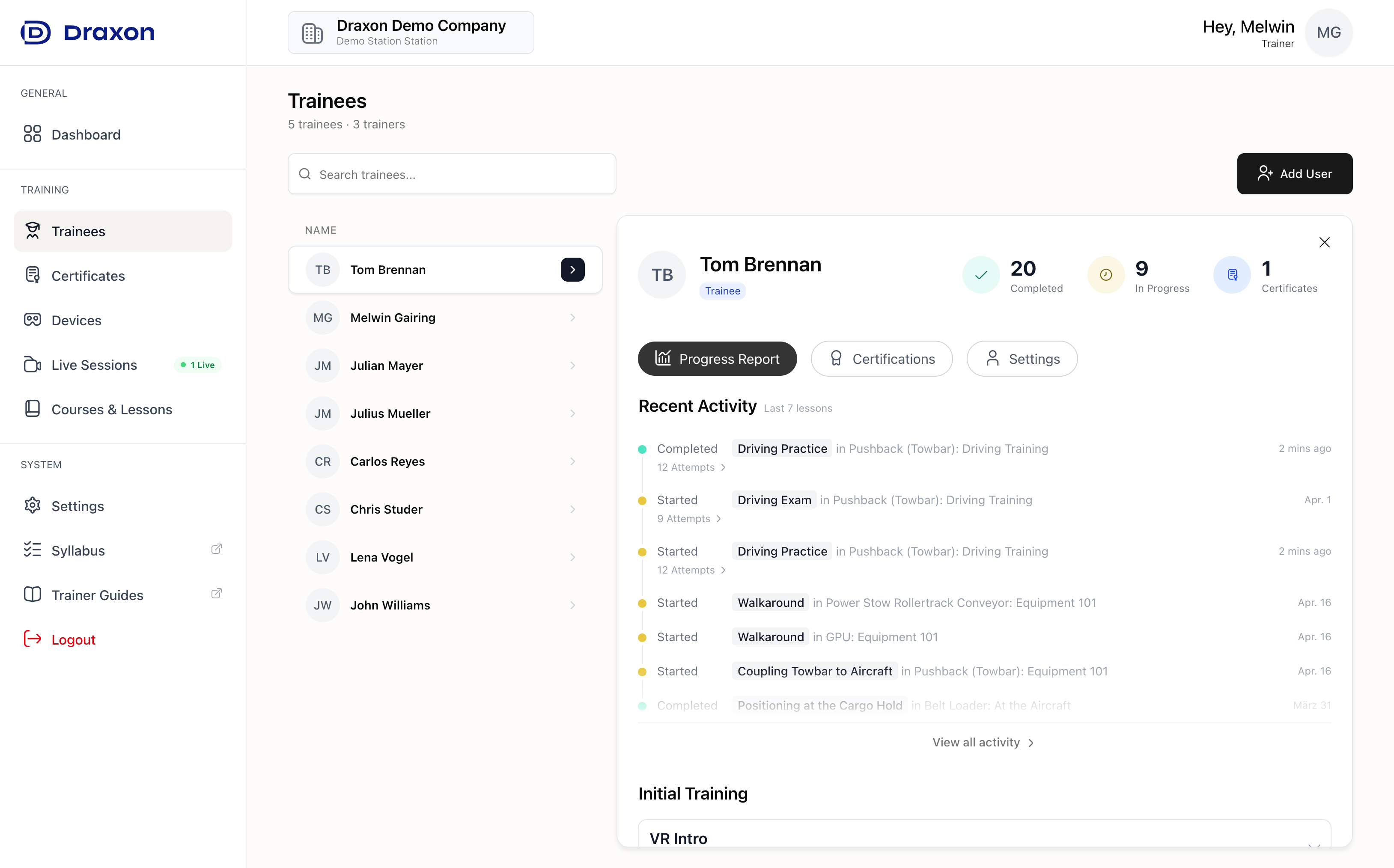
- Open a trainee to view their overall progress: completed and in-progress lessons.
- Recent Activity shows the trainee's latest lesson activity, including status and date.
- Training courses are listed with a completion summary showing finished and in-progress modules.
- Drill into a course to review progress at the module and lesson level.
- Each lesson shows individual attempts, including date, duration, and completion status.
- Selecting a lesson opens its full attempt history, including when each attempt happened, time spent, and completion status.
Certificates
A certificate is issued automatically once a trainee completes all lessons in a certificate-eligible course. Certificates are accessed from the trainee's profile under the Certificates tab, next to the Progress Report.
Downloading Certificates
Certificates can be downloaded as PDF directly from both the list view and the detail view. Look for the download icon on certificate rows and cards.
Sharing Certificates
Each certificate has a Share button (available in both list and detail view). Clicking it opens a dialog with a QR code that links to the certificate's public verify page.
The public verify page allows anyone with the link to view and verify a certificate without logging in. It displays the trainee info, training type, competencies, and lesson list. The data is snapshotted at the time of completion, so the certificate remains valid even if account data changes later.
Certificate Content
Each certificate includes:
- Trainee Name and Trainee ID
- Training Type
- IATA AHM Reference
- Draxon VR App Version
- Certificate ID
- Completion Date and Validity Date
- Demonstrated and assessed Competencies
- List of Training Lessons
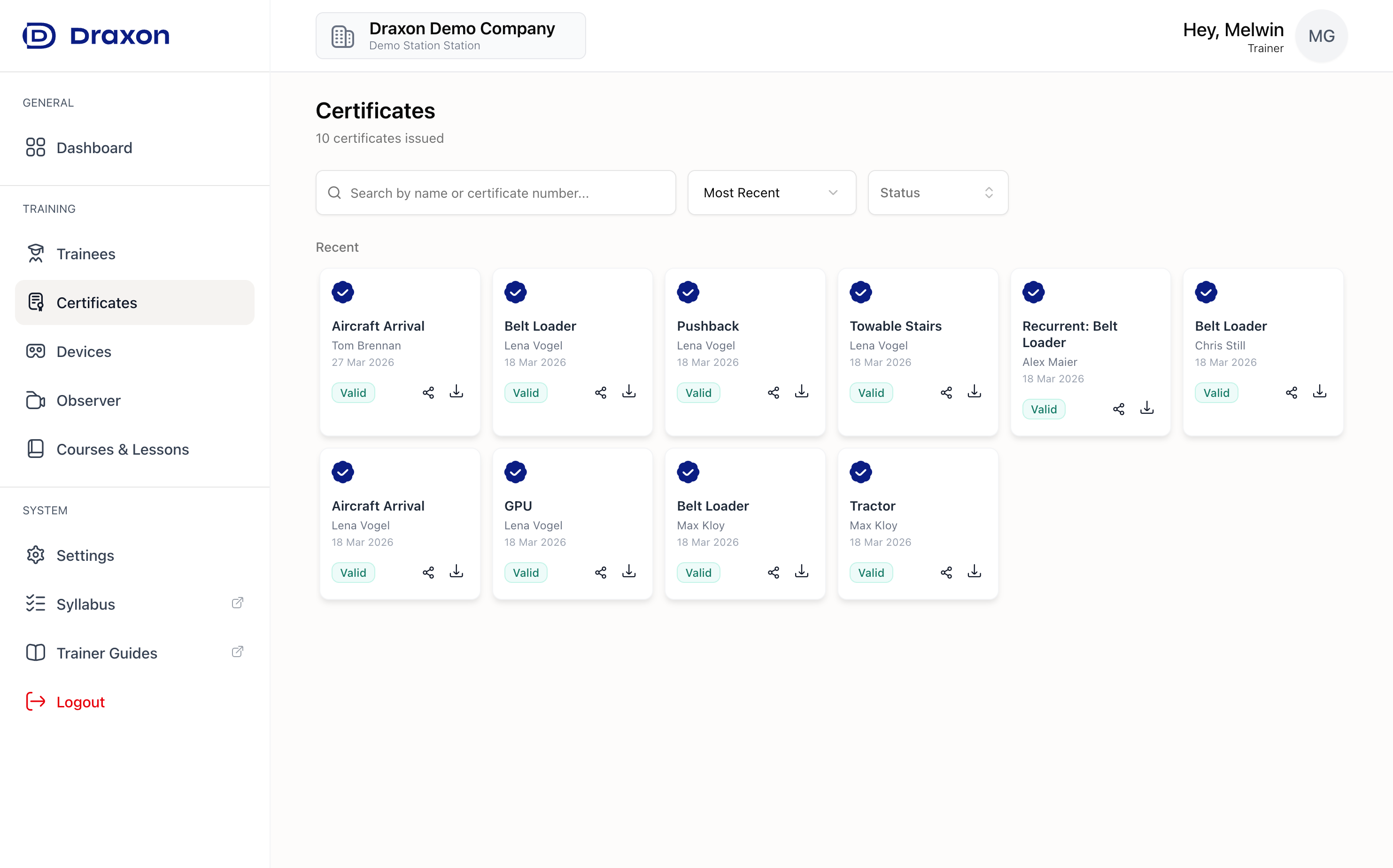
The Certificates page
Devices
This section shows the VR headsets that are linked to your account and the Device ID assigned to each one.
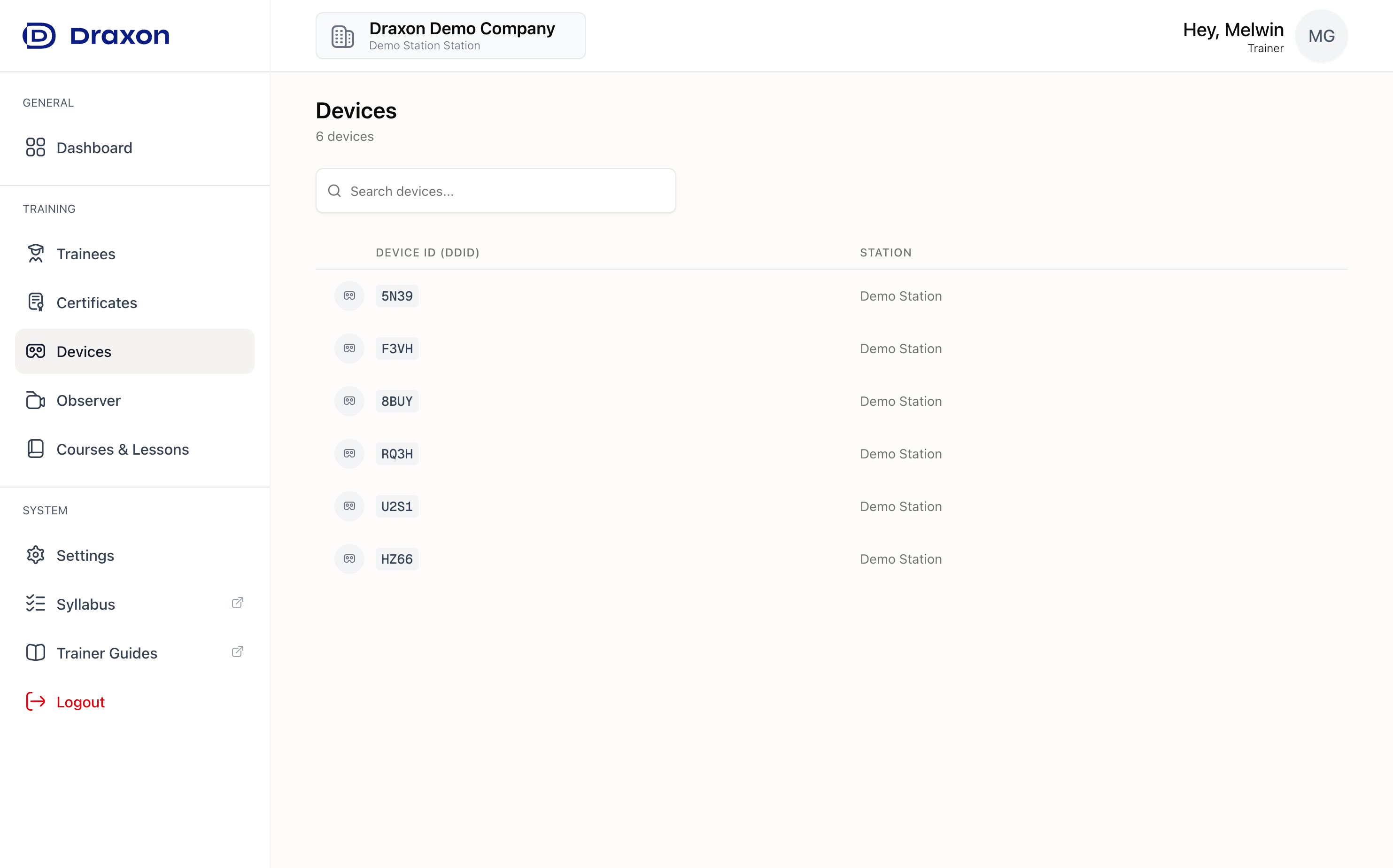
The Devices page
Observer
The Observer lets trainers monitor a trainee's live VR view directly from the browser. Whenever a trainee logs into a headset, the Device ID on this screen changes to their name, so you always know who is using which headset.
How to Observe a Trainee
- Open the Observer tab from the sidebar.
- Find the trainee by name or Device ID and click Watch.
- Click I understand, continue.
- You can now see what the trainee is doing in the training.
The headset must be worn and active — the stream pauses if the headset is removed.
Performance Warning: Use the Observer sparingly. Streaming impacts VR headset performance and battery life. It is designed for quick check-ins, not for continuous live streaming.
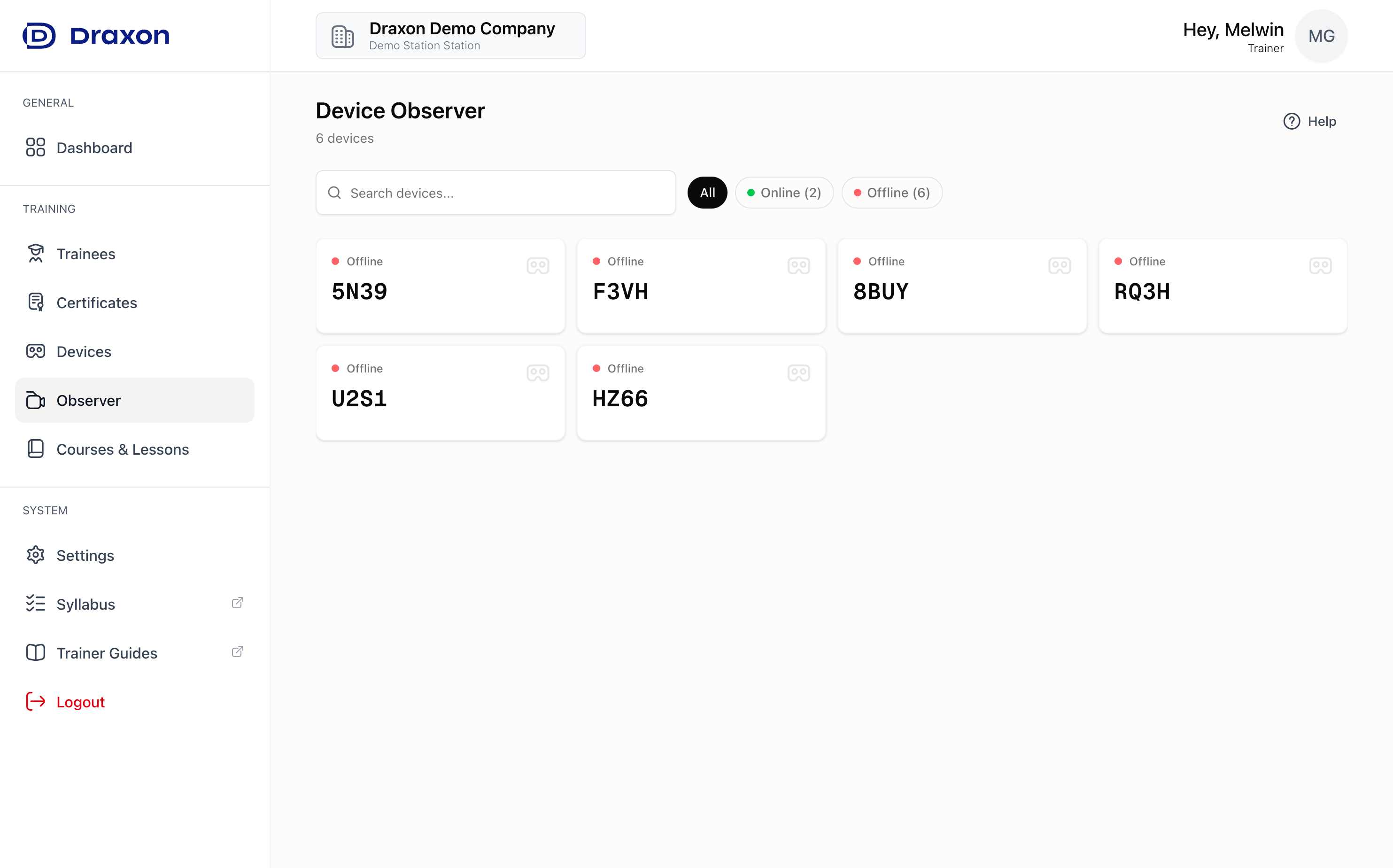
The Observer feature
Courses & Lessons
This page gives you an overview of all available training courses and the lessons within each course. Use it to prepare and plan your training sessions.
Course List
Courses are grouped by training type (e.g. Initial Training, Recurrent Training, Collection). Use the filter tabs at the top to show only a specific type, or use the search bar to find a course, module, or lesson by name.
Each course card shows the course name, the number of lessons, and the estimated total duration.
Course Detail View
Click on a course to open its detail view. At the top you will see four stats:
- Lessons — Total number of lessons in the course
- Trainees — Number of trainees who have trained at least one lesson
- Completed — Total lesson completions across all trainees
- In Progress — Total lessons currently in progress
Below the stats, lessons are grouped by module. Each lesson row shows its name, completion and in-progress counts, and estimated duration.
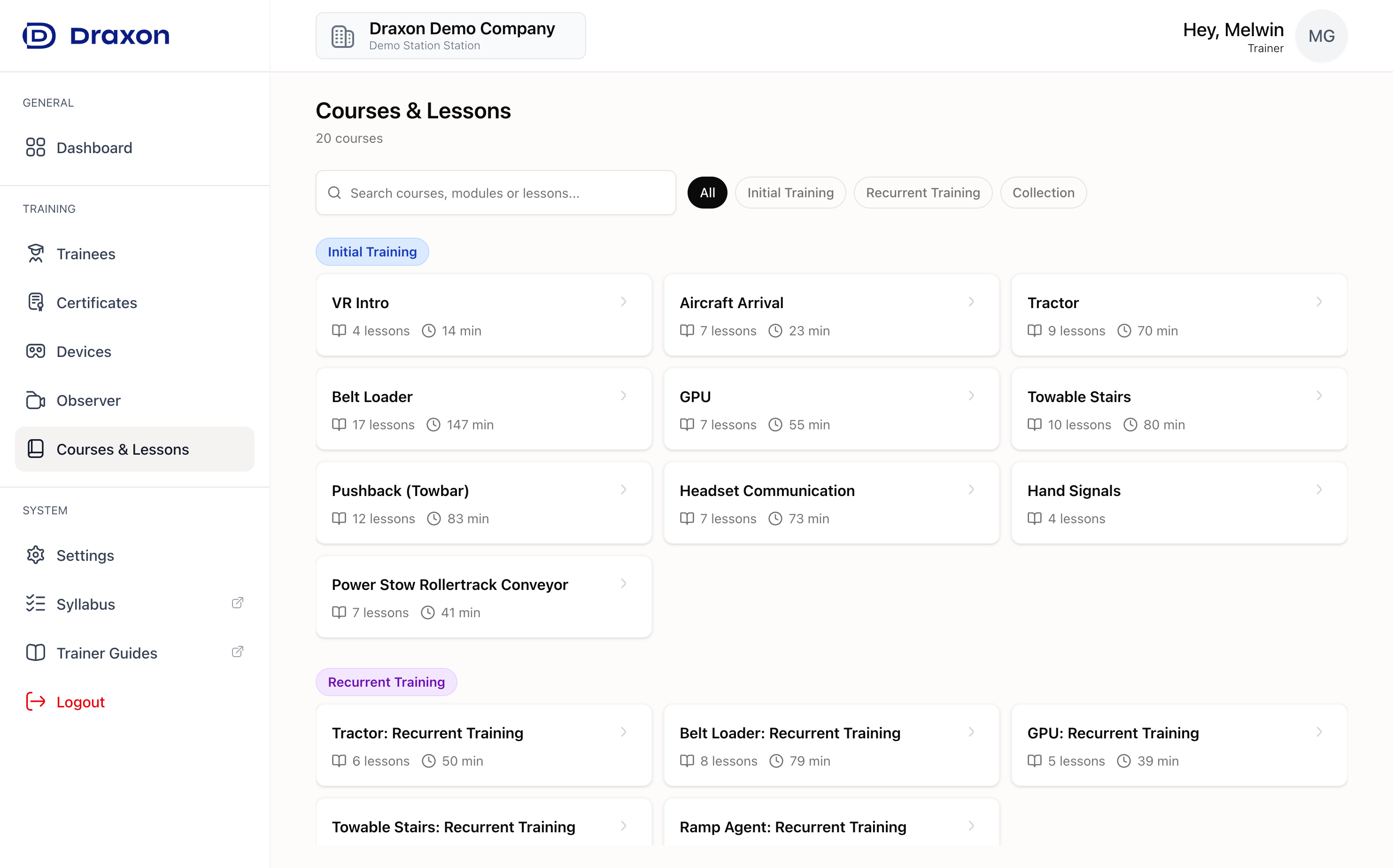
The Courses & Lessons page
System
At the bottom of the sidebar you will find the System section with the following items:
- Settings — Manage your account details, update your web password, and change your personal VR PIN under the Security tab.
- Syllabus — Opens the full syllabus in a new tab. It contains detailed information for every lesson, including learning objectives, procedures, and assessment criteria. Use it to prepare sessions or look up specifics.
- Trainer Guides — Opens this guide in a new tab. Come back here any time you need a refresher on how to use the Trainer Hub or set up the VR equipment.
- Logout — Signs you out of the Trainer Hub.